Plan Your Visit
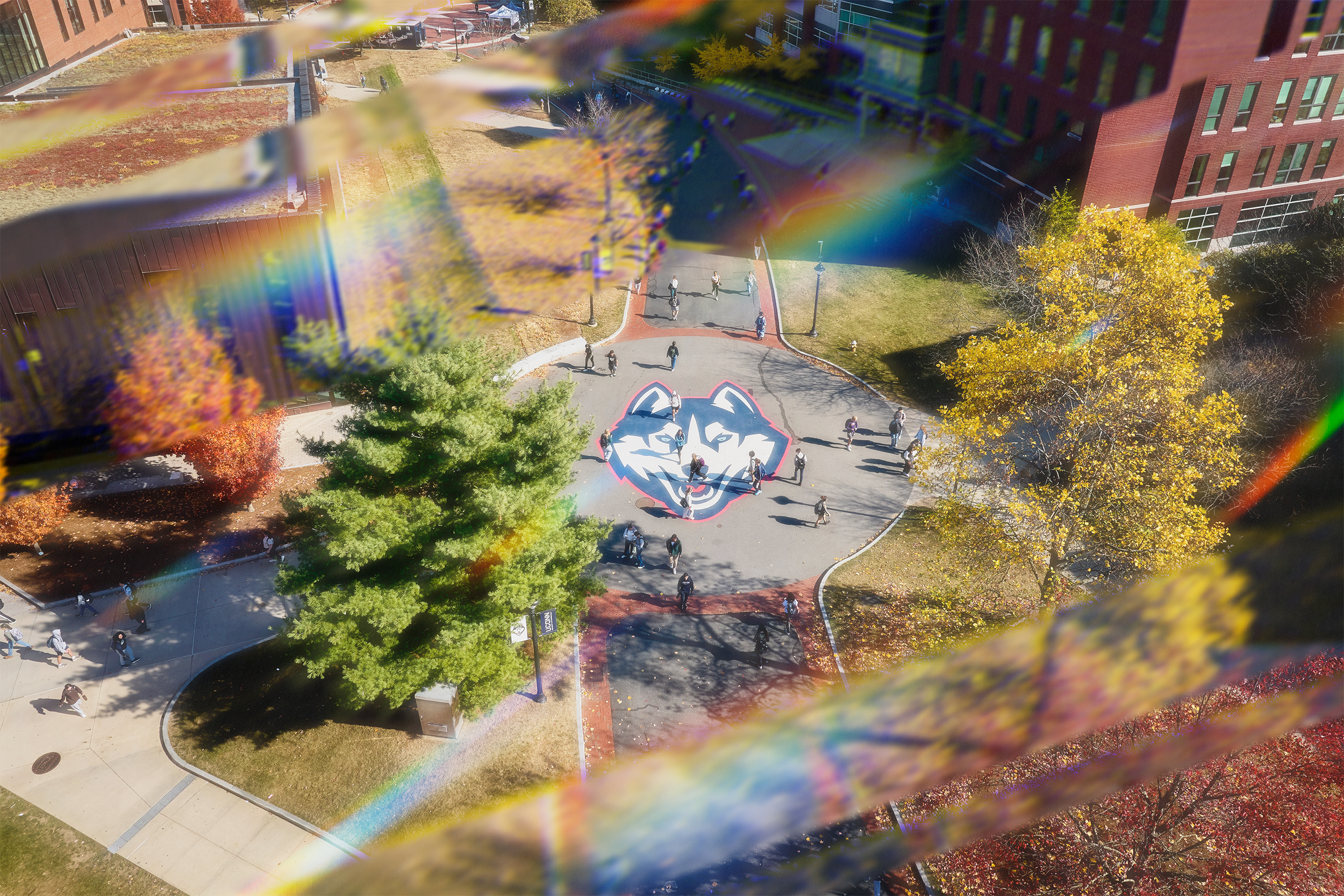
The hardest part of planning a trip to UConn is squeezing everything in. After you book your campus tour, follow a few tips to make your campus visit a success.
Please be sure to review our set of driving directions and parking information, even if you are familiar with campus. Parking should be paid for at the beginning of your visit.
We are committed to ensuring that all visitors have a welcoming experience during our campus tours. If you or a guest require an accommodation such as wheelchair access or sign language interpretation, please let us know when scheduling your visit. Our team will work with you to ensure your tour experience meets your needs.
Related Links
Stay Awhile
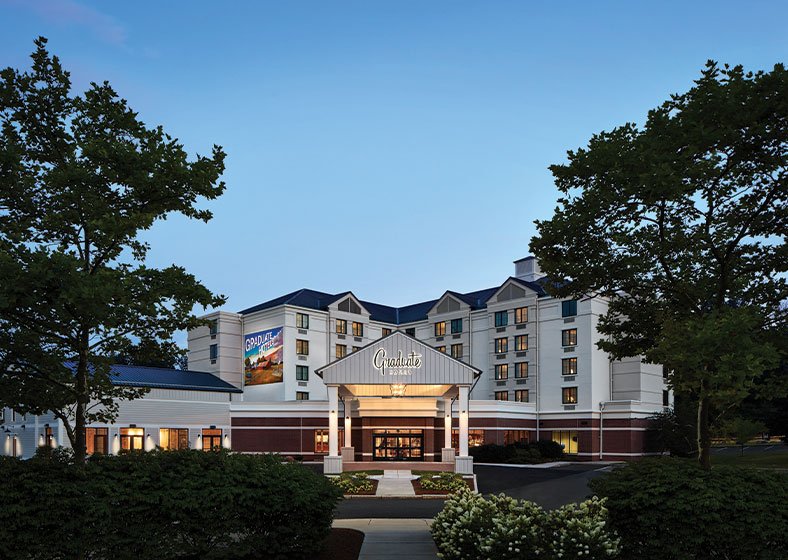
Set right on the University of Connecticut campus and an easy walk to the best spots in Downtown Storrs, the Graduate by Hilton Storrs is the perfect home base for campus visits.
Want to explore even more of the local area? There are also several off-campus accommodations located just a few miles from campus.
Top Things To Do During Your Visit
Dairy Bar
The award-winning UConn Dairy Bar features 24-plus flavors of delicious ice cream made from our own cows’ milk.
3636 Horsebarn Hill Road Ext., Storrs, CT 06269
(860) 486-1021
Downtown Storrs
Adjacent to the campus is Downtown Storrs, a vibrant retail and residential college center featuring shops, museums, restaurants for every craving, a grocery store, and more.
1 Dog Lane, Storrs, CT 06268
(860) 429-2740
UConn Bookstore
A visit to UConn isn’t complete without a stop at the Bookstore for new Husky gear!
2075 Hillside Road, Storrs, CT 06269
(860) 486-3537
Student Union
Grab a bite to eat after your tour in our Student Union food court, featuring our own Union Street Market, as well as Bear’s Smokehouse BBQ; Earth, Wok & Fire; Subway; and Dunkin.
2110 Hillside Road, Storrs, CT 06269
(860) 486-3422
Museums
Whether it is celebrating Huskymania at our J. Robert Donnelly Husky Heritage Sports Museum or taking in an exhibit at the Ballard Institute and Museum of Puppetry, there’s always something new to discover! UConn is also home to the William Benton Museum of Art, Connecticut’s state art museum.
Showtime
Nourish your appetite for creativity and take in a concert or show at one of our five on-campus theaters including the Jorgensen Center of Performing Arts and von der Mehden Recital Hall.
Experience Huskymania
UConn fans have some of the best school spirit in the country, and rightfully so. Our 21 Division I athletics teams work hard to compete at the highest level, racking up 26 national championships across all sports and making UConn Nation proud.
2098 Hillside Rd, Storrs, CT 06269
(860) 486-2724
Horsebarn Hill
Take in the sweeping views of campus from the top of Horsebarn Hill, where students enjoy studying, sledding, hiking, and even Sunset Yoga.
47-45 Horsebarn Hill Rd, Storrs, CT 06269
(860) 486-2917
Gateway Sign
Commemorate your visit by taking part in one of our most popular student traditions — snapping a selfie (or several!) at the iconic UConn sign, a symbol of this special place and the bold work that goes on here. Located at the north end of campus on Route 195, this widely recognized sign is an ideal picture backdrop for everyone from new students to graduates donning a cap and gown.
Corner of Storrs Rd and Tower Loop Rd
Storrs, CT 06269
Cultural Centers & Programs
The University’s seven cultural centers and programs promote awareness and enrich campus diversity through educational programs, leadership opportunities, outreach, and more. The centers and programs offer an atmosphere of support, guidance, and advocacy when needed and host some of the most popular student events on campus.
Student Union, First & Fourth Floors
2110 Hillside Road, Storrs, CT 06269